How to Summarize YouTube Videos with ChatGPT
Use a YouTube transcript with ChatGPT to create focused summaries, handle longer videos, and turn the result into useful notes.
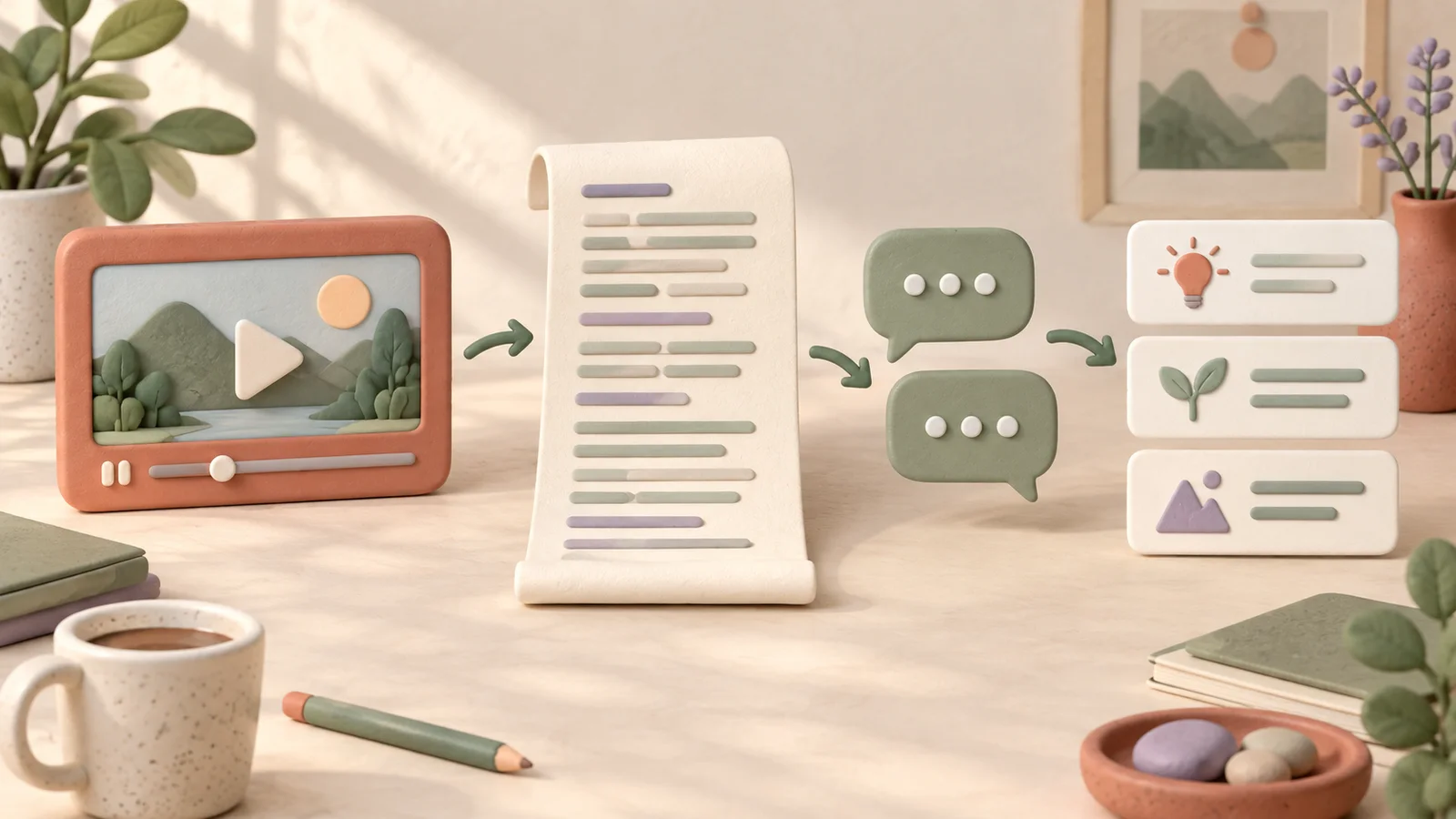
ChatGPT can help turn a video's spoken content into a useful summary when you provide the transcript. The key is to give it both the material and a clear request. “Summarize this” may produce an overview; “Explain the method, its prerequisites, and the example” gives you a more useful starting point for applying what you learned.
Here is a transcript-based workflow you can control, with prompts for different reading goals and a way to handle longer material.
Get the transcript into the conversation
Open the video description and look for Show transcript. YouTube makes this available for videos with captions, and selecting a transcript line can take you to that part of the recording. See YouTube's transcript help.
Copy the available text into your working document. Keep timestamps if you want to locate passages later. Remove navigation text and other material accidentally copied from the page, but preserve the speaker's qualifiers and examples.
Open ChatGPT and paste the text with your instructions. You can also use a supported document upload when available in your account; OpenAI's file upload documentation explains the current file and usage limits. Supplying the transcript makes the source explicit. A response to a bare link alone does not establish which parts of a video the assistant accessed.
Use a prompt that defines the result
Try this prompt for a general explanation:
Summarize the transcript below for a reader new to the topic.
Use only the supplied source for claims about the video.

Return:
- The main idea in two sentences
- Five key points with a brief explanation of each
- The most useful example from the speaker
- Important conditions, exceptions, or unresolved questions

Keep names and technical terms consistent.
If the source does not explain something, say so.
Transcript: [paste the text here]
The number of points is a formatting preference, not a test of quality. If the video contains three substantial ideas, there is no benefit in inventing two more. Read the first result and ask for the structure to be adjusted if it forces the material into the wrong shape.
For a tutorial, replace the five points with prerequisites, ordered steps, and expected results. For an interview, ask the assistant to distinguish each speaker's claims. For a review, ask for the evaluation criteria and the evidence behind the conclusion.
Work through a long video in sections
If the transcript is too large for your current conversation or upload limits, split it at topic boundaries. Label each section with its title or approximate position, and summarize each using the same fields. Keep a small overlap where an explanation continues across the boundary.
Then ask for a combined outline based on the section notes. Specify that the assistant should merge repeated ideas, preserve disagreements, and identify references that need the original passage. Do not discard the source text after the first pass: a mistake in an early summary can survive later compression.
For example, a long interview might have separate discussions of the problem, the proposed solution, and objections. Summarizing those sections independently makes it easier to notice when the final answer retains the solution but loses an important objection.
Refine the summary with focused follow-ups
Ask one question at a time so you can judge whether the response improves the note:
| Your goal | A useful follow-up |
|---|---|
| Apply a process | “Which prerequisites must be met before step one?” |
| Understand a claim | “What example does the speaker use to support this?” |
| Compare ideas | “How does the second approach differ from the first?” |
| Read in another language | “Rewrite the summary in English, retaining the original technical terms in parentheses.” |
These prompts are suggestions for your own workflow. They do not make the underlying transcript more accurate. If a term looks wrong, return to the audio instead of asking the assistant to guess a more plausible word.
Use Glasp if you want help moving the transcript
Glasp provides a browser-based route from a YouTube transcript to an AI summary. Its official walkthrough explains the extension and the available summary workflow. This can reduce manual copying if you often work from a desktop browser.
Check the selected model, prompt, and text before submitting. Extension features and account limits can change, and a ready-made prompt may not match your purpose. Keep the same review standards you would use for a transcript pasted manually.
Check the note before you keep it
Choose two or three consequential details and compare them with the recording. Prioritize a quotation, a number, or a step that would change what you do. Also check whether a cautious statement has become a certainty.
Save the video title and creator with your working notes. Keep your own interpretation separate from the summary. If you want a portable document with headings and examples, follow our Markdown notes guide.
Generate a ready-to-read note with CuteNote
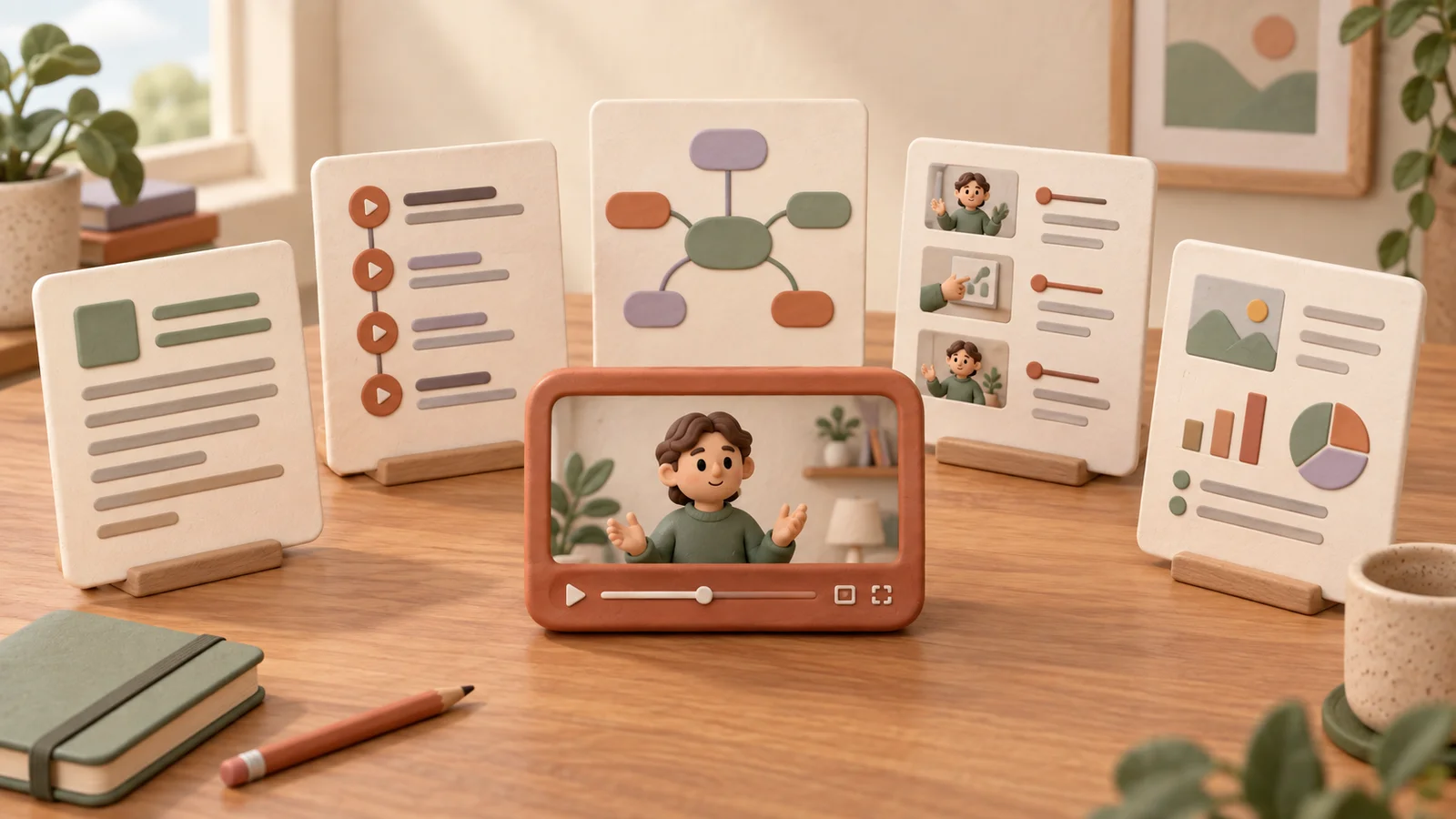
For a more direct video-to-notes workflow, open CuteNote, paste the YouTube link, choose your output, and generate a note. Use a visual long image for an overview, a mind map for topic relationships, or detailed Markdown for closer reading.
This public note about the ChatGPT summary workflow is an example of how a tutorial can become a compact reference. You can review your own result alongside the original transcript and ask AI questions about the source material.
Generation depends on source availability and account limits. Once you have checked the result, use the available copy or export action to keep it in the form you will return to. Start with a familiar video so you can judge both the summary and the usefulness of the format.