How to Turn YouTube Videos into Markdown Notes
Build portable video notes with clear headings, useful examples, source links, and a simple Markdown template.
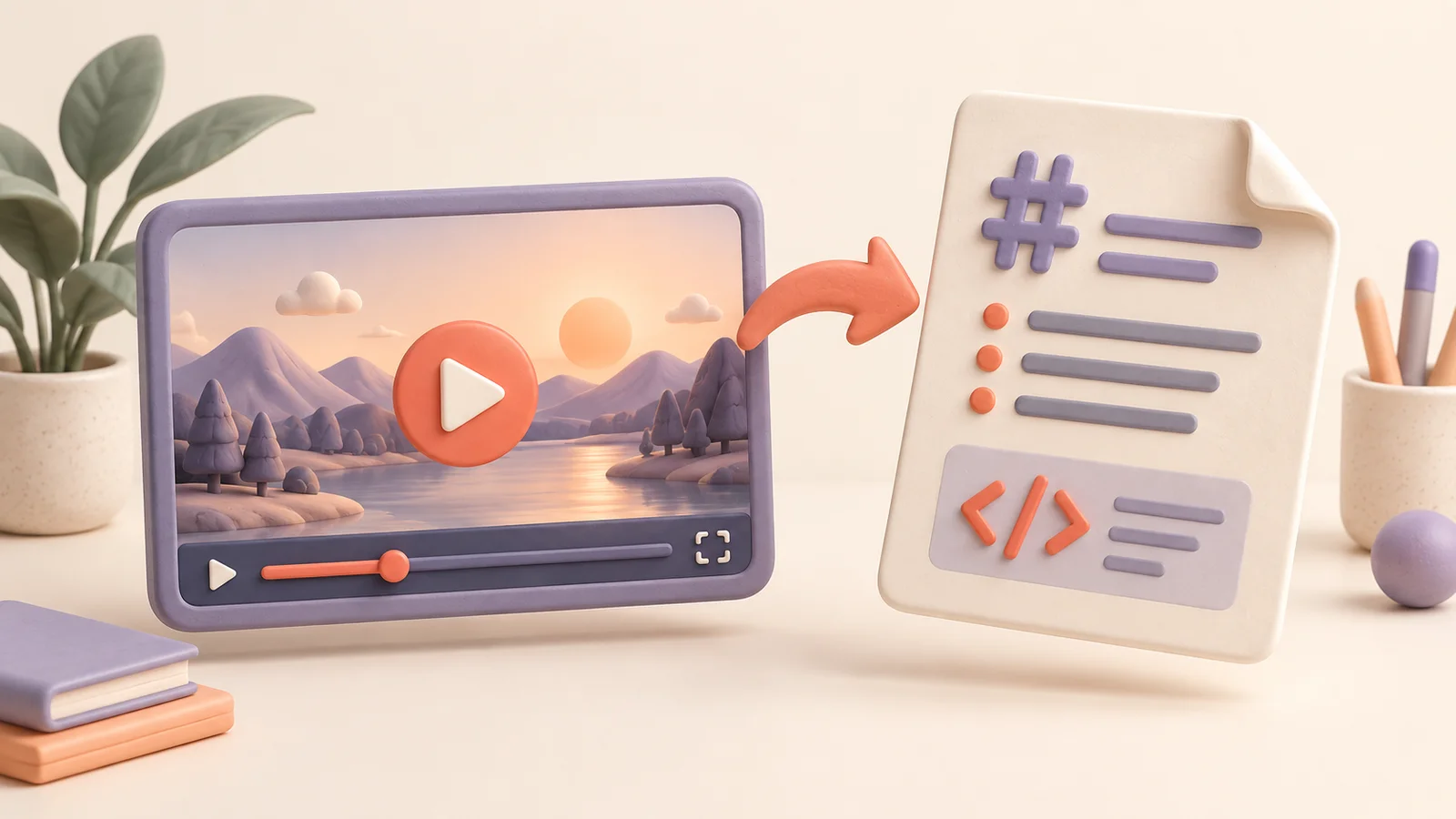
A video is easy to watch but harder to revisit. Markdown gives its ideas a lightweight home: a text document with headings, lists, links, and examples that you can edit as your understanding grows.
The important step is choosing what the document should preserve. Converting a transcript into a wall of text does not automatically produce useful notes. This guide shows how to organize a video into a readable Markdown document and review it before adding it to your collection.
Why use Markdown for video notes?
Markdown keeps the structure visible in plain text. A heading starts with a hash sign, a bullet with a dash, and a link includes both its label and destination. You can read the file even without a rich preview.
That makes it a useful choice when you want control over the wording and organization of your notes. It also makes source links and unresolved questions easy to keep next to the ideas they qualify.
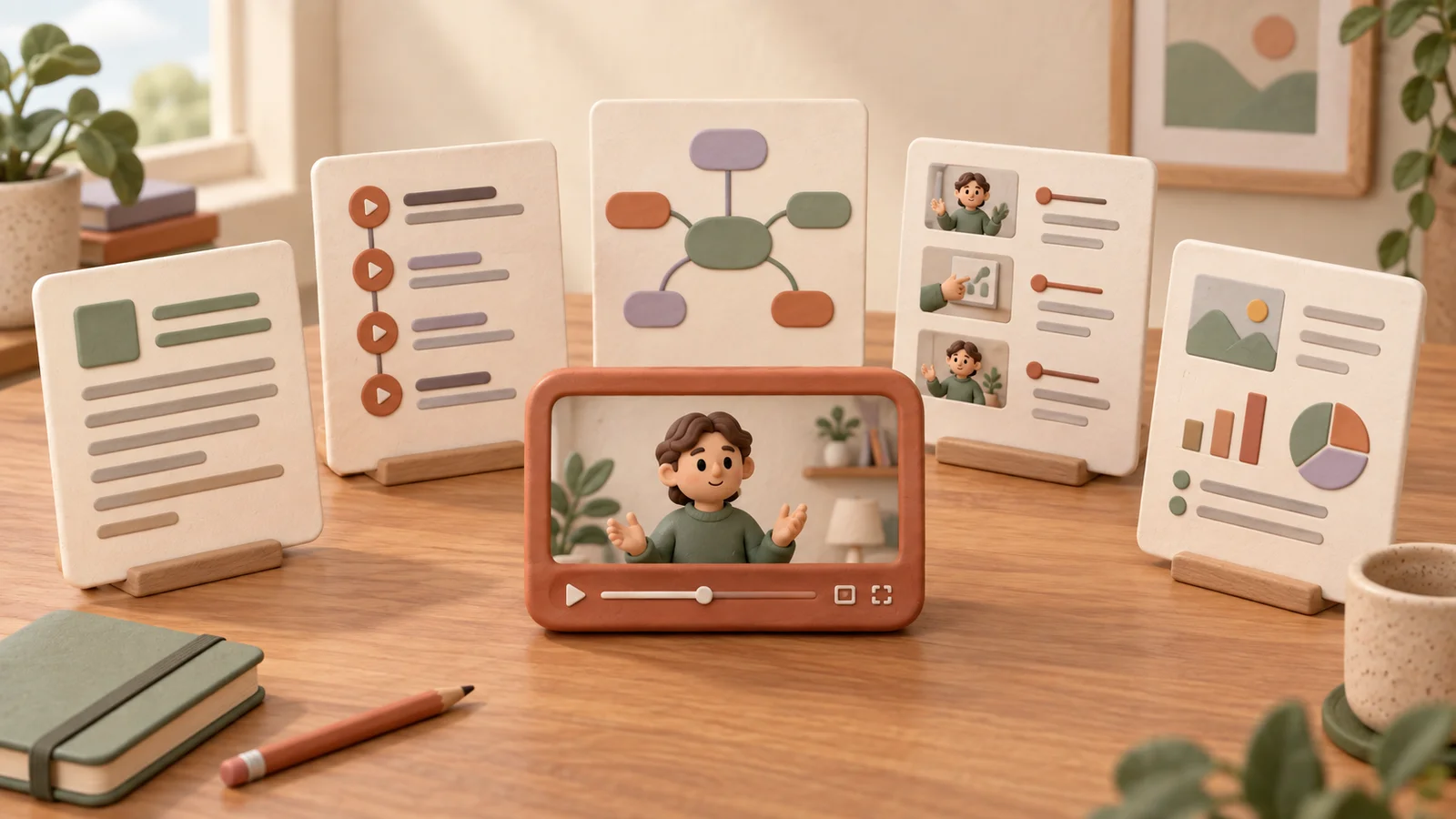
Choose a visual note for a quick overview or a mind map for relationships. Choose Markdown when you expect to search, revise, combine, or reuse the text.
Generate a Markdown note in CuteNote
Open CuteNote, paste the YouTube link, and select Markdown as the output. Submit the request and review the generated document when it is ready. Source availability and your account limits determine whether the request can complete.
Read the result before saving it. Check that the headings describe real topics, the lists retain necessary context, and the document distinguishes the speaker's statements from your own conclusions.
Use the Markdown copy or download action available in the note view to keep the text. When moving it into another editor, check the preview: support for tables and other Markdown extensions can differ across editors. Plain headings, paragraphs, lists, and links are a dependable starting point.
Start with a reusable structure
The following template is intentionally small. It is a suggested structure for your own notes, not a promise that every generated document will use these exact sections.
# A descriptive title

Source: [Original video](https://www.youtube.com/watch?v=VIDEO_ID)
Creator: Add the verified creator name

## Main idea
A short explanation in your own words.

## Key points
- First important point, including its conditions.
- Second important point and why it matters.

## Example
A concrete example from the video, with attribution.

## Questions to check
- What is unclear or missing?

## Next action
- One useful thing to do with this information.
Replace the placeholder link with the actual source. Only add a timestamp if you have checked it. If you include a direct quote, preserve the wording and verify it against the audio.
Match the headings to the video
For a tutorial, use headings such as “Requirements,” “Steps,” and “Troubleshooting.” For an explanatory lecture, try “Main concept,” “How it works,” and “Worked example.” For an interview, organize around topics and retain speaker attribution.
Avoid making every sentence a heading. A useful heading tells you what question the next section answers. Within a section, a short paragraph can explain a connection that would be lost in a list of isolated phrases.
Use numbered lists when order matters. Use bullets for independent points. Keep code inside fenced code blocks so punctuation and indentation stay visible. Do not assume code copied from a summary is ready to run; compare it with the demonstrated version and its context.
Keep examples and exceptions
An overly compressed note often loses the detail that makes an idea usable. Consider this illustrative example, written for this guide:
Too vague: Break work into smaller tasks.
More useful: Define a task by its deliverable, such as “write three opening sentences.” If you cannot identify a deliverable, clarify the task before scheduling it.
The second version retains both an example and a condition. That is the kind of information worth keeping, even when you want concise notes.
When the video is ambiguous, preserve the uncertainty. A “Questions to check” section is better than a polished answer that the source does not support. For the broader review process, see our guide to summarizing YouTube videos.
Review the exported document
Before considering the note finished, check both content and formatting:
- Open the source link and confirm it points to the right video.
- Verify names, figures, quotations, and ordered instructions.
- Check that the title and headings describe the actual content.
- Make sure code blocks, lists, and links render correctly in your editor.
- Label your additions so they are not mistaken for the creator's statements.
Text-based notes may miss details shown only in a diagram or demonstration. If a visual is essential, retain a reference to the relevant section of the video and explain why you need to revisit it.
Build a collection you can maintain
Choose filenames you will understand later, such as planning-a-focused-work-session.md. Keep one source note per video before combining several into a topic document. This makes it easier to check where an idea came from or revise a claim later.
Use a small set of consistent topics rather than inventing a new category for every note. When you return to a document, add what you learned from applying it. Clearly label that as your experience.
Short-form content can use the same approach with fewer sections. Our TikTok summary guide includes a compact idea, context, and action structure.
Common questions
Is Markdown the same as a transcript?
No. Markdown is a formatting convention. You can use it for a transcript, a summary, or detailed notes. The document's usefulness depends on the content and structure you choose.
Do I need to know Markdown syntax first?
Only a little. Start with headings, bullets, and links, then preview the result. You can keep most of the document as ordinary paragraphs.
Can I keep editing the downloaded file?
Yes. It is text you can revise in your editor. Treat your local copy as a separate document; changes to it should not be assumed to update the original CuteNote note automatically.