How to Summarize YouTube Videos with Gemini
Ask Gemini focused questions about YouTube content, review the answers, and turn a quick overview into notes you can use later.
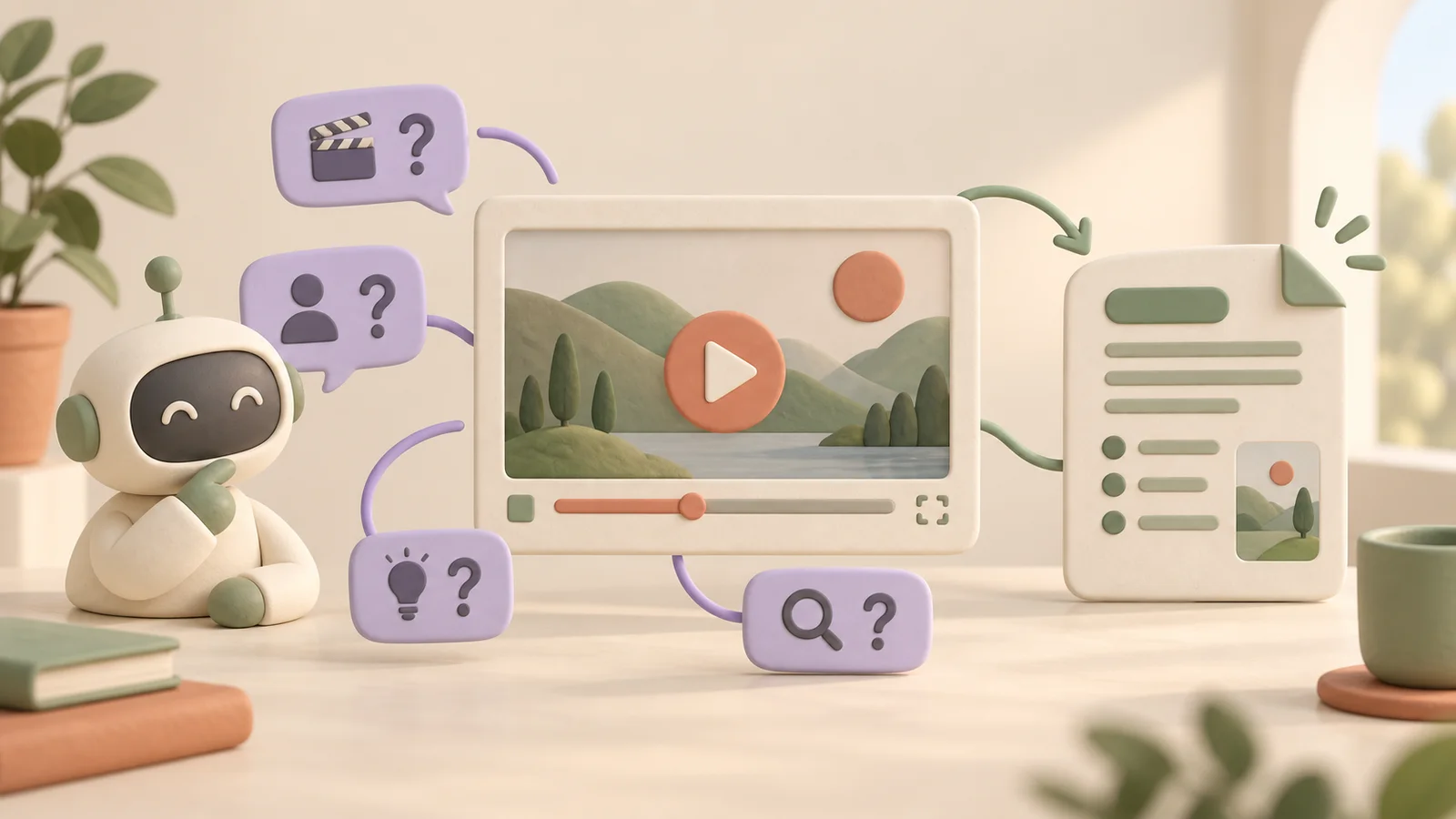
Sometimes you want to know whether a video answers your question before settling in to watch it. Gemini can help you explore YouTube content and ask about the ideas it contains. A focused request makes the result easier to evaluate than a broad request for everything important.
This guide starts with a short overview, then shows how to ask for supporting detail and keep a useful note. The aim is to identify the parts worth your attention and retain the explanation you need.
Check that YouTube questions are available
Google's YouTube content guidance for Gemini describes finding videos and asking about them. It currently requires signing in and having Keep Activity enabled; this feature is not available in Live chats or Gemini in Google Messages. Review that setting and decide whether the workflow suits your account preferences.
Open Gemini in its app or on the web. Identify the video you want to discuss with its link and title. If Gemini cannot access it, ask it to find the exact title and creator, then confirm it found the right result. Google's documented discovery workflow is to find a video first and ask about that result.
If access still fails, work from an available transcript instead of assuming the assistant has read the video. Our ChatGPT transcript guide explains a source-text workflow you can adapt to an assistant that accepts your text.
Ask for an overview with a purpose
Before sending the prompt, decide what you want to learn. You might be choosing a tutorial, investigating a product review, or trying to understand an interview's central argument. Include that goal explicitly:
I want to know whether this video explains [my question].
Video: [paste the link and title]

If you can access the content, give me:
1. Its main topic in two sentences
2. The points relevant to my question
3. One example used in the video
4. What I would still need to check by watching

If you cannot access the content, say so.
Do not infer the video's conclusions from its title alone.
Read the overview before requesting more detail. Does it mention a concrete example, or does it repeat the title using broader language? If the response could describe almost any video on the topic, ask for the specific explanation behind one point.
Follow the argument, not just the list
A useful follow-up asks how the speaker reaches a conclusion. For example, after a video about organizing a workday, you could ask: “What problem does the suggested routine solve, and when might it be difficult to follow?”
If you want an application to your own situation, request it separately. “Apply this to a student timetable” asks the assistant to add reasoning beyond the original video. Label that response as an application, so it does not become confused with the speaker's recommendation.
For a product review, ask which observations support the verdict. For a tutorial, ask about prerequisites and missing steps. For a debate, ask where the speakers disagree. These questions help you judge whether the answer contains the distinctions you actually need.
Turn the response into a working note
Once the overview is useful, request a structure you can maintain:
Organize our discussion into a note with these sections:
Main idea; relevant points; supporting examples; questions to check.
Separate information attributed to the video from your own suggestions.
Keep uncertainty visible and remove repeated wording.
Copy the result into your chosen note editor. Add the video title and creator, plus any details you verified yourself. A saved conversation can contain several competing drafts; keeping one reviewed version helps you avoid returning to an earlier, less accurate answer.
If you use the material to make review questions or a presentation outline, check the resulting claims again. Changing the format does not create new evidence. A polished paragraph or quiz answer can still inherit a mistake from the first summary.
Know when to return to the video
Revisit the recording when the explanation depends on a visual demonstration, a chart, or an exact phrase. A summary can tell you what a process is intended to achieve without preserving the settings shown on screen.
Keep a small “checked” list in your note. For example: the named tool is correct, the prerequisite was confirmed, and the example belongs to the right speaker. You do not need to verify every sentence equally; focus on details that affect your understanding or next action.
For mobile-specific options, see summarizing YouTube videos on Android. If you are still choosing a workflow, our AI summary tools comparison explains the different kinds of results you can keep.
Keep a visual or detailed summary with CuteNote
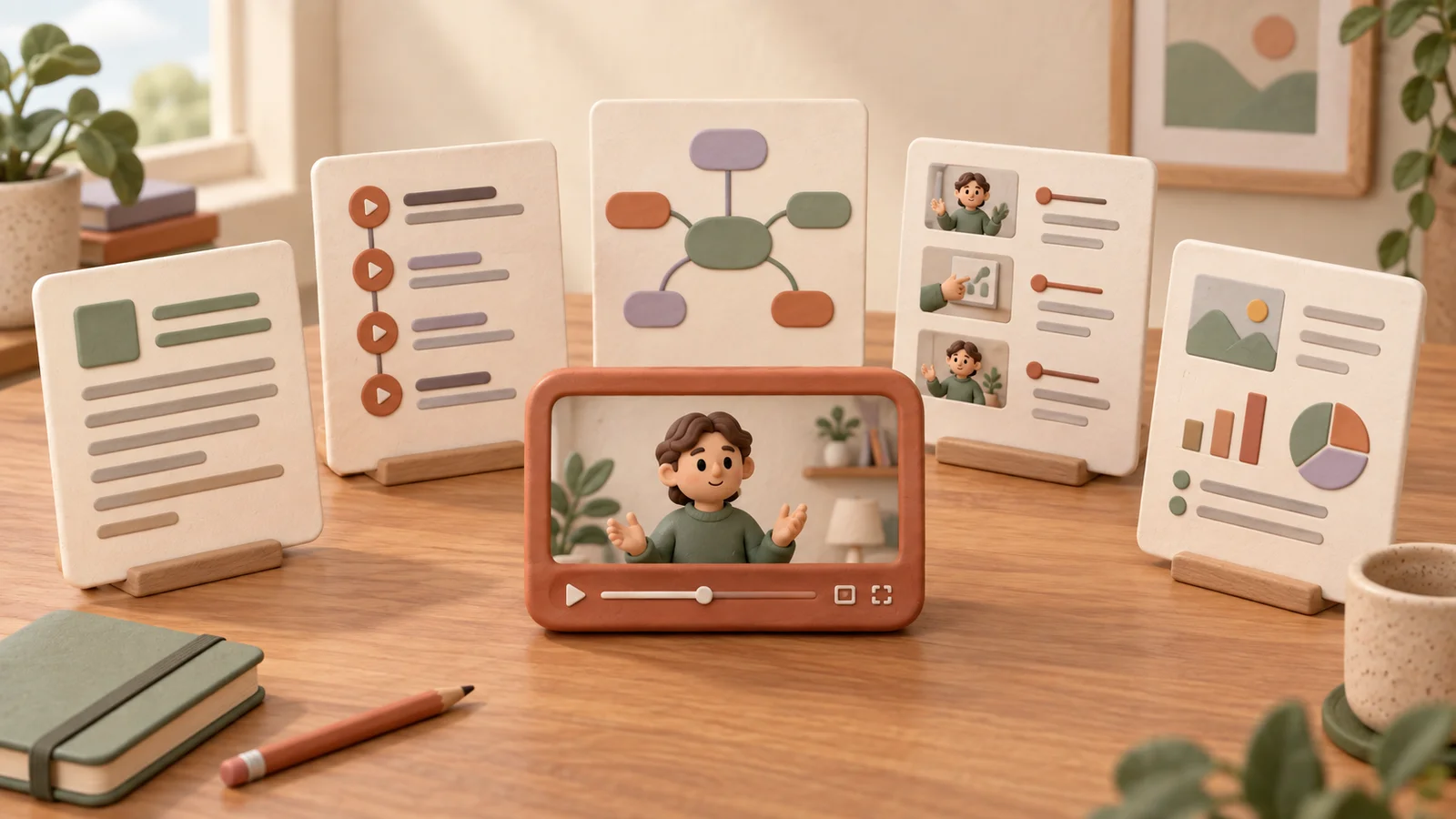
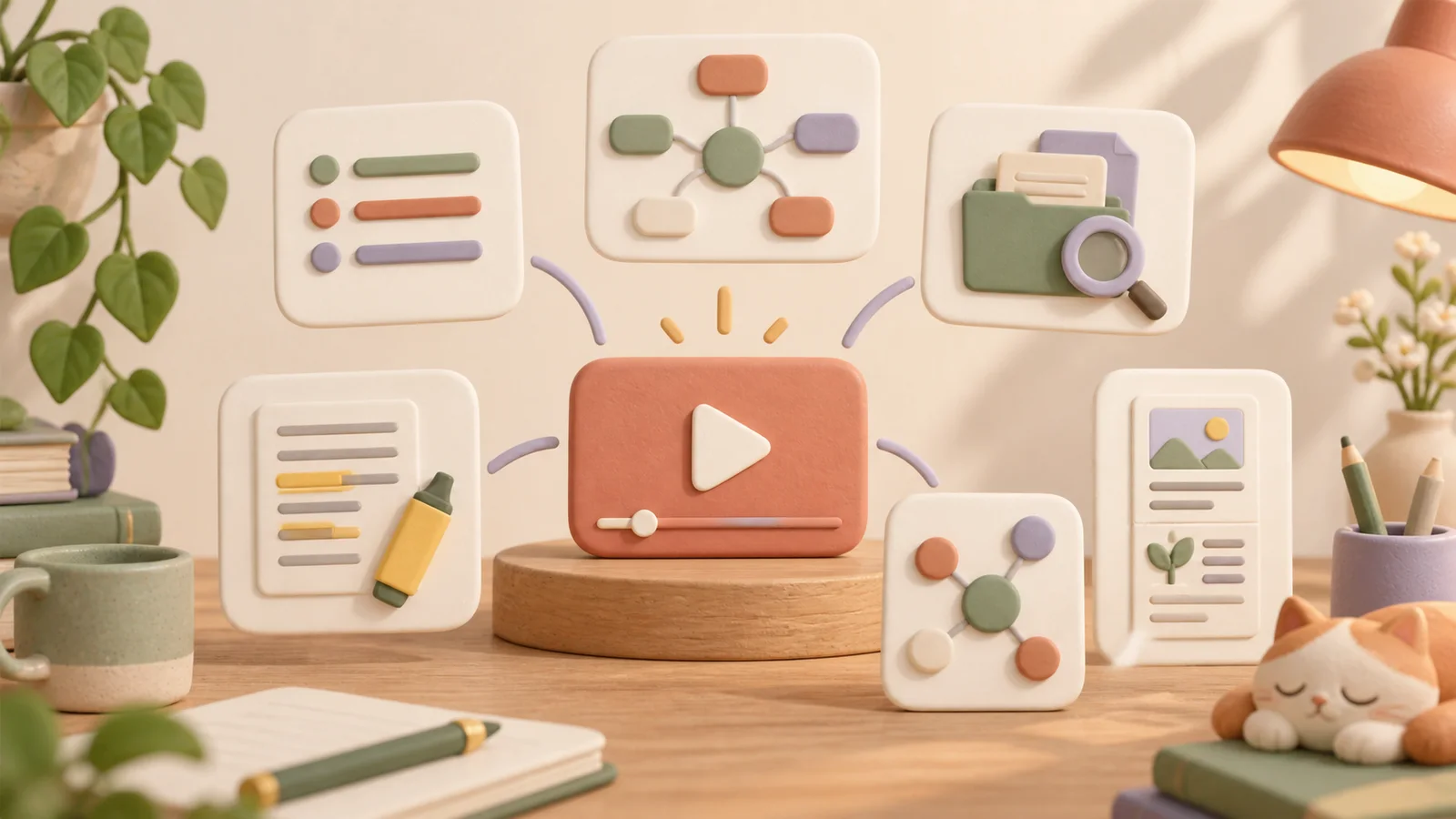
If your next step is saving and sharing the ideas, try CuteNote. Paste the YouTube link, choose a visual long image, mind map, or detailed Markdown output, and generate your note. The formats give you different ways to revisit the same source material.
This public visual note about summarizing with Gemini shows a tutorial organized into a concise reference. For your own video, review the original transcript and use AI questions to explore points that need explanation.
Source access and account limits affect availability. After reviewing the output, save it using the supported copy or export action. You can keep an overview for quick reading and choose a more detailed format when you need the reasoning behind it.