How to Summarize YouTube Videos with Tactiq
Use Tactiq's YouTube transcript tool, upload the text, generate a summary, and ask focused questions about the content.
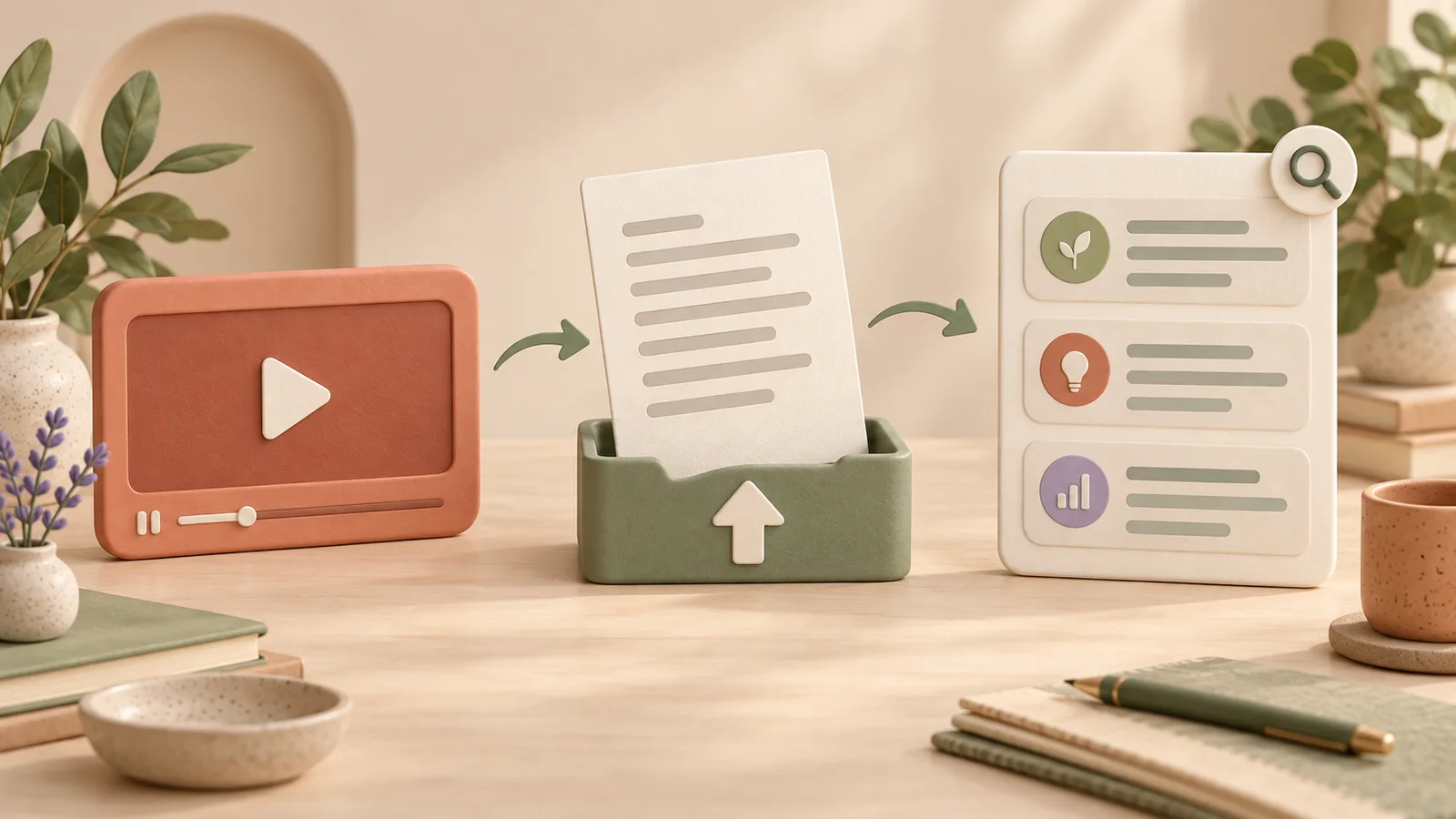
If you already use Tactiq to organize conversations, you can bring a YouTube transcript into that workflow as well. The process has two distinct parts: get the video's text, then use the uploaded transcript for summaries and questions.
This is useful when you want to search an explanation, extract a list of recommendations, or keep the material with other transcripts. Here is how to approach each stage and check that the result answers your actual question.
Get the YouTube transcript
Copy the video's link and open Tactiq's YouTube transcript generator. Submit the link and review the text when it becomes available. Tactiq's YouTube help article describes using this tool and then uploading the transcript for analysis.
Check the title and scan a few recognizable passages. A transcript preserves the speech available to the tool; it is not yet a shorter explanation of the video. Copy or download the text, using a supported format such as TXT for the next step.
Keep timestamps when they will help you locate passages later. If the tool cannot retrieve the source, resolve that before proceeding. A shorter, incomplete text file can still look convincing after summarization, so inspect what you actually received.
Upload the text to your workspace
Sign in to Tactiq and choose Upload Transcript or Recording from the dashboard. Select the file, give it a recognizable title, and submit it. Tactiq documents the supported formats and controls in its upload guide.
Use the video title rather than a generic filename such as “transcript.” Add a date if it will help you distinguish versions. A software demonstration from several years ago may describe different controls from the ones you see today.
Once processing finishes, open the item and confirm that the text is present. The interface may use meeting terminology because the workspace is designed around conversations. Your note should still identify the item as a video transcript so future readers understand its context.
Generate a first summary
Tactiq's quick prompt instructions describe ready-made choices in Get answers, including short and detailed summaries. Open the processed item and choose the option that fits your reading goal.
Use a short summary to decide which themes matter. Use a detailed one when you want more of the reasoning. Read the result before asking for a different format; changing the layout will not repair a missing passage in the source.
For a tutorial or interview, a custom prompt can give you a more suitable structure:
Treat this source as a YouTube video transcript.
Summarize its main idea, recommendations, and supporting examples.
Preserve conditions and disagreements.
Do not turn general advice into assigned meeting action items.
Mark anything the source leaves unclear.
That last distinction matters. A speaker saying “You could review this weekly” has not assigned a deadline to your team. Keep the video summary separate from any tasks you decide to create afterward.
Ask questions that point back to the text
Once you have an overview, use a focused question to recover detail. For example, if a productivity video recommends time blocking, ask what problem it addresses and which example the speaker gives. Then find the relevant phrase in the transcript to check the answer.
| What you need | Question to try |
|---|---|
| A concrete list | “List the methods named by the speaker.” |
| An explanation | “Why does the speaker recommend the second method?” |
| A limitation | “What exceptions or prerequisites are mentioned?” |
| Source support | “Show the passage that supports this point.” |
These are suggested questions, not a promise that every transcript contains the answers. A useful result may be that the speaker never explains a detail. Keep that gap visible instead of treating an assistant's plausible addition as source evidence.
Check limits and save the reviewed result
Transcript retrieval and AI analysis are separate stages. Check the current Tactiq AI credit rules for your account rather than assuming every action is included because the transcript tool was accessible. The upload help also notes that AI features require a transcript longer than two minutes.
Before sharing, check names, figures, and important instructions against the recording. Label your own conclusions separately. Copy or save the reviewed response using the available controls, then open it in its destination to confirm the content and formatting.
For a workflow built around a general text assistant, our ChatGPT guide explains how to use a transcript directly. For a broader choice of outputs, see the YouTube summary tools comparison.
Try CuteNote when your goal is a finished video note
If you want to go from a video link to a readable note, open CuteNote, paste the YouTube link, select your output format, and generate. Choose a visual long image for an overview, a mind map for structure, or detailed Markdown for more explanation.
This public visual note about the Tactiq workflow shows the kind of reference you can keep after a tutorial. For your own source, review the original transcript and ask AI questions about points you want to understand more closely.
Source access and account limits affect availability. Once you have checked the result, use the supported copy or export action to save it. This route is useful when the artifact you want at the end is a note to read or share, alongside whichever conversation tools you already use.