How to Turn YouTube Videos into Infographic Notes
Turn a video's ideas into a readable visual note: extract the content, choose a clear structure, check the details, and save an image worth sharing.
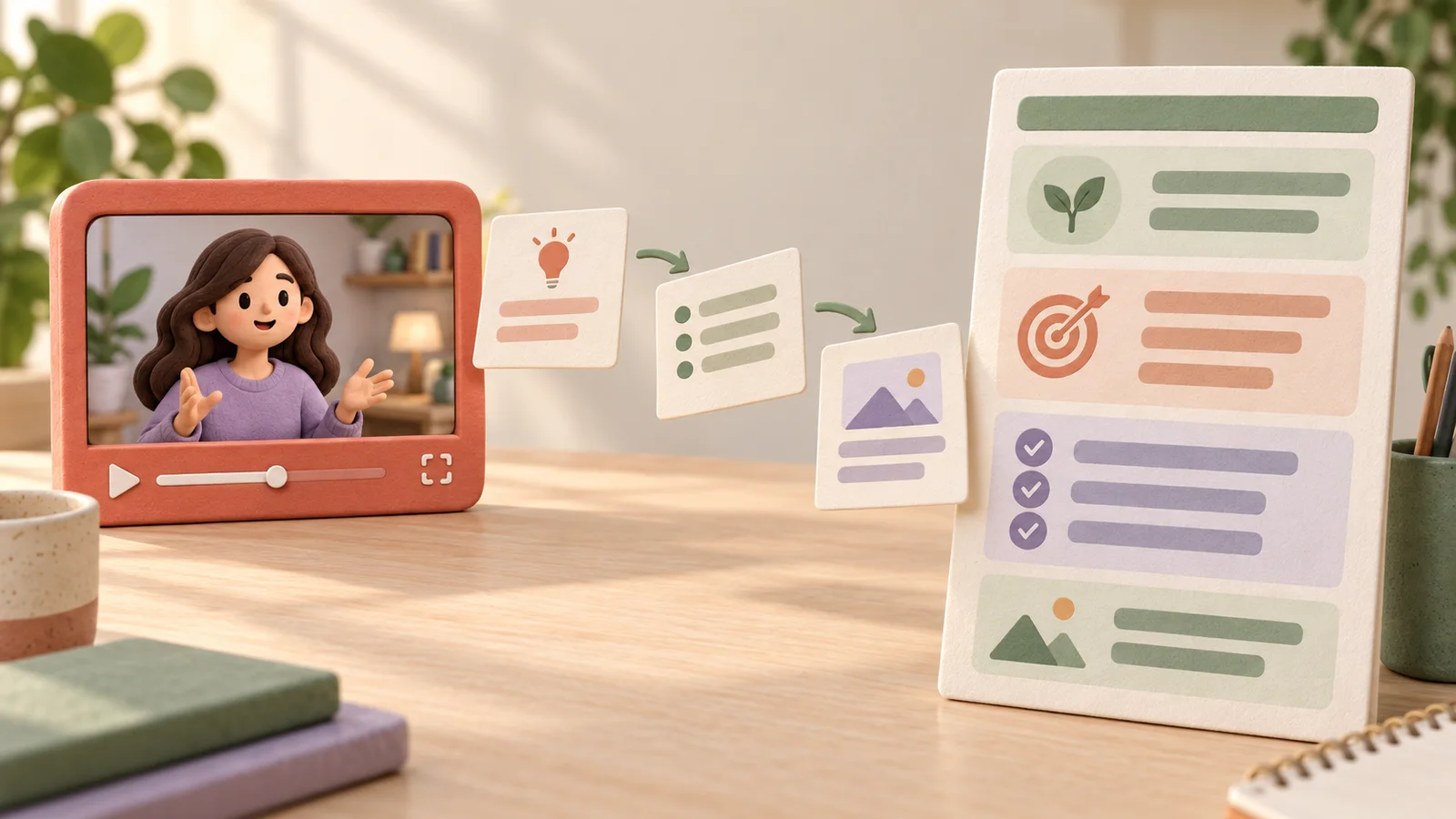
You remember a useful video, but finding its advice again means searching through a timeline. An infographic note gives those ideas a visible structure: a main point, a few supporting sections, and an example you can recognize at a glance.
The challenge is deciding what deserves space. A transcript squeezed into a colorful image is still difficult to read. This workflow helps you turn the content into a visual reference that makes sense on a phone as well as on a larger screen.
Start with the information you want to keep
Choose one video and write a short purpose for the note. For a tutorial, it might be “Remember the setup steps.” For an interview, it might be “Compare the speaker's three recommendations.” This purpose determines which details belong in the finished image.
Get the available transcript and keep a copy while you work. YouTube's transcript instructions explain where to find it for videos with captions. Check the recording when a key detail appears only in a diagram or demonstration.
Before designing anything, create a short content outline. Include the main idea, three to five sections, and any essential condition. If the video describes a method that works only in a particular situation, that condition belongs beside the method, not in a tiny footer.
Draft the content before requesting a design
Use an AI text assistant to turn the transcript into a visual brief. Here is a prompt you can adapt:
Turn the supplied transcript into a content outline for an infographic.
Audience: a reader who has not watched the video.
Purpose: [what the reader needs to remember or do].

Include a descriptive title, one main takeaway, and up to five sections.
Give each section a short heading and one or two concise explanations.
Preserve the speaker's examples, prerequisites, and important exceptions.
Flag unclear details rather than filling them in.
Do not design the image yet. Return editable text for review.
Read the outline as if you had never seen the video. A heading such as “Be consistent” needs an explanation of what to do consistently. A heading such as “Choose one weekly review time” already gives the reader something concrete.
The prompt is a starting point, not a guarantee of completeness. Remove repeated ideas and restore any missing example before working on the visual layout. Editing the content now is easier than repairing a finished image later.
Match the layout to the explanation
Choose a layout that reveals the relationships in the content:
| Content | Useful visual structure |
|---|---|
| A procedure | Ordered steps from top to bottom |
| Several choices | Comparable cards using the same fields |
| A central idea with supporting concepts | A branching map |
| A recommendation with conditions | Main advice followed by an example and exception |
For example, imagine a tutorial about preparing a presentation. Your note could have four sections: decide what the audience needs, outline the argument, choose supporting evidence, and rehearse the transitions. This is an illustrative layout, not a summary extracted from a particular video.
Each section should earn its space. Use icons to distinguish sections or clarify meaning. Keep decoration away from the text, and avoid implying that a larger icon means a more important claim unless that is intentional.
Build a readable image
Place the reviewed text into your preferred design editor, or give it to an image tool as a design brief. Ask for a clear reading order, strong text contrast, generous spacing, and a modest number of sections. If the result has too much text, simplify the outline before reducing the font size.
Keep the reviewed text separately. Generated lettering can contain errors, so compare every label and number with your outline. If the tool struggles with text, create the illustration separately and add the final wording in an editor where you can control it.
A useful check is to open the image at approximately phone width. Can you read the explanation without zooming into every section? If not, split the material into a short series or use a longer note with larger type. A readable two-part reference is more useful than a dense single panel.
Review the result before sharing
Check that the image preserves the argument, not just a collection of attractive phrases. Look especially at the order of steps, the meaning of arrows, and any figures. A comparison should give each option similar treatment so the layout does not accidentally suggest a ranking.
Retain the creator and video title in your working notes so you can find the source again. Label your own examples as additions. When someone asks where an idea came from, you should be able to distinguish the speaker's claim from your interpretation.
If you need an editable companion document, see our guide to YouTube-to-Markdown notes. The image can provide the overview while the document holds the detail.
Create a visual note directly with CuteNote
If you want a shorter path from video to visual reference, open CuteNote, paste the YouTube link, select the visual long-image output, and generate a note. Review the result, then use the image export action to save it for later or share it.
You can see the format in this public visual note about creating infographic notes. Notice how the tutorial's steps become separate sections that you can scan and revisit while preparing your own visual reference.
For a complicated explanation, consider a mind map or detailed Markdown output as well. Source availability and account limits affect generation. Start with one video you know, inspect the important details, and keep the format that best supports how you will use the information.