Get oriented in a research paper
Identify the topic and supporting ideas before reading the methods, figures, and findings closely.
Turn papers, reports, and reading material into visual notes, mind maps, or detailed Markdown. Get your bearings before the deep read.
Sign in before selecting your file. Your chosen format will be kept.
One PDF at a time. File and page limits depend on your plan.
View plans and limits ↗Find the central question
Organize the supporting ideas
Return to the evidence
Sign in and choose a PDF from your device, or drop it into the upload area.
Select visual notes, a mind map, or Markdown. Upload the document and start generation.
Open your note from the generation workspace. Check key findings against the document and ask questions as you read.
Get an overview, connect the ideas, or keep the detail. Choose a format when you generate; add another view when you need it.
A clear overview you can scan, save, and share as an image.
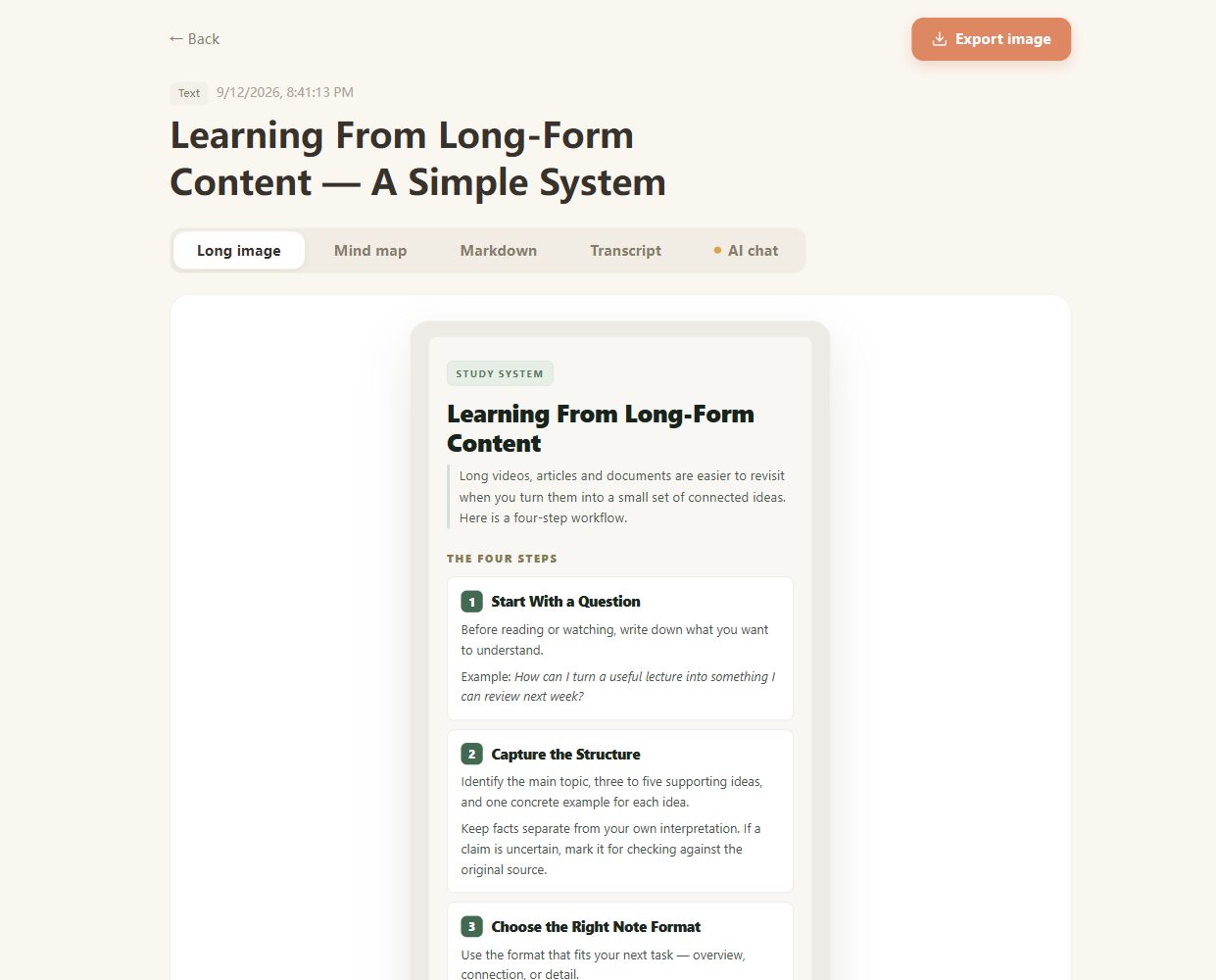
Real CuteNote output · Original demonstration text about learning from long-form content.
Identify the topic and supporting ideas before reading the methods, figures, and findings closely.
Collect the main themes in a visual note, then return to the original for the numbers and details that matter.
Use a mind map for relationships or Markdown for a more detailed set of revision notes.
Upload a PDF report, paper, study document, or other reading material. CuteNote extracts the content and generates a structured note. The upload service checks the file and your account limits before processing.
Document processing includes OCR-capable parsing. Clear scans work better than blurry pages; complex tables, equations, and unusual layouts may need extra checking against the original.
Yes. Open AI chat on the completed note to ask questions based on the extracted document content. Check important numbers and quotations in your PDF.
Uploaded files are private sources and are excluded from the international public-note search workflow. Uploading a file does not publish it as a public example.
File size, page count, and usage allowances depend on your account. The upload interface reports files that exceed the current limits. See Pricing for plan details.
Bring something you want to understand. Leave with something worth keeping.
Create your first note